


Studio Chat
QUICK START GUIDE
Studio Chat is a secure, single sign-on interface to multiple large language models and an image generation tool, hosted on SMU's Azure environment and built on the open-source LibreChat platform. It gives SMU staff, faculty, and researchers a single, university-managed space to experiment with generative AI for work tasks without sending data to consumer AI services.
This guide walks you through getting in, picking a model, and using the most common features.
Unrestricted
Low-risk data -- publicly available data
Restricted
Medium-risk data -- handle with care
Sensitive
High Risk -- PII, Staff Data, Academic Records (grades, transcripts, files)
Highly Sensitive
Highest Risk -- Finance, Health, Payroll, Confidential or NDA data, Password, API keys, Access Credentials

1. SIGNING IN
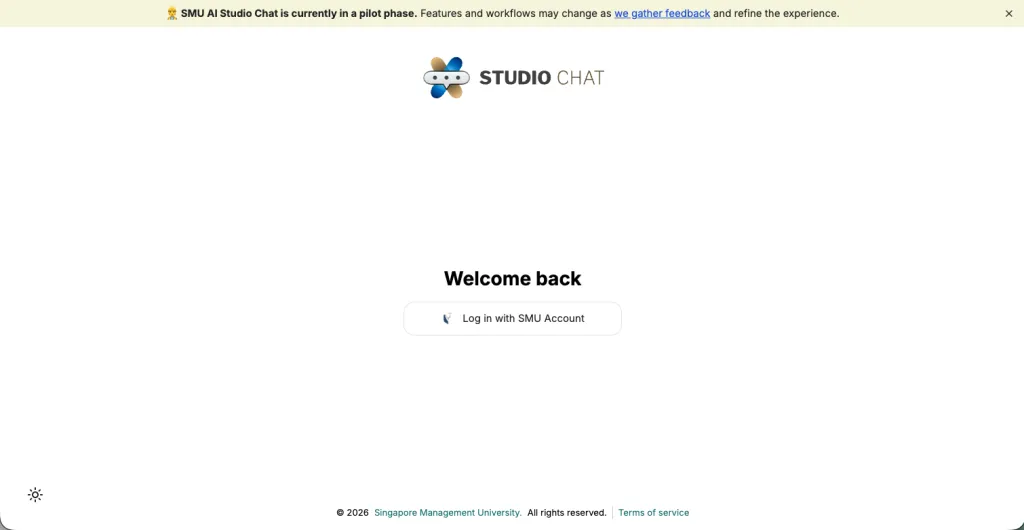
- Go to https://smu.sg/aichat.
- Click Log in with SMU Account.
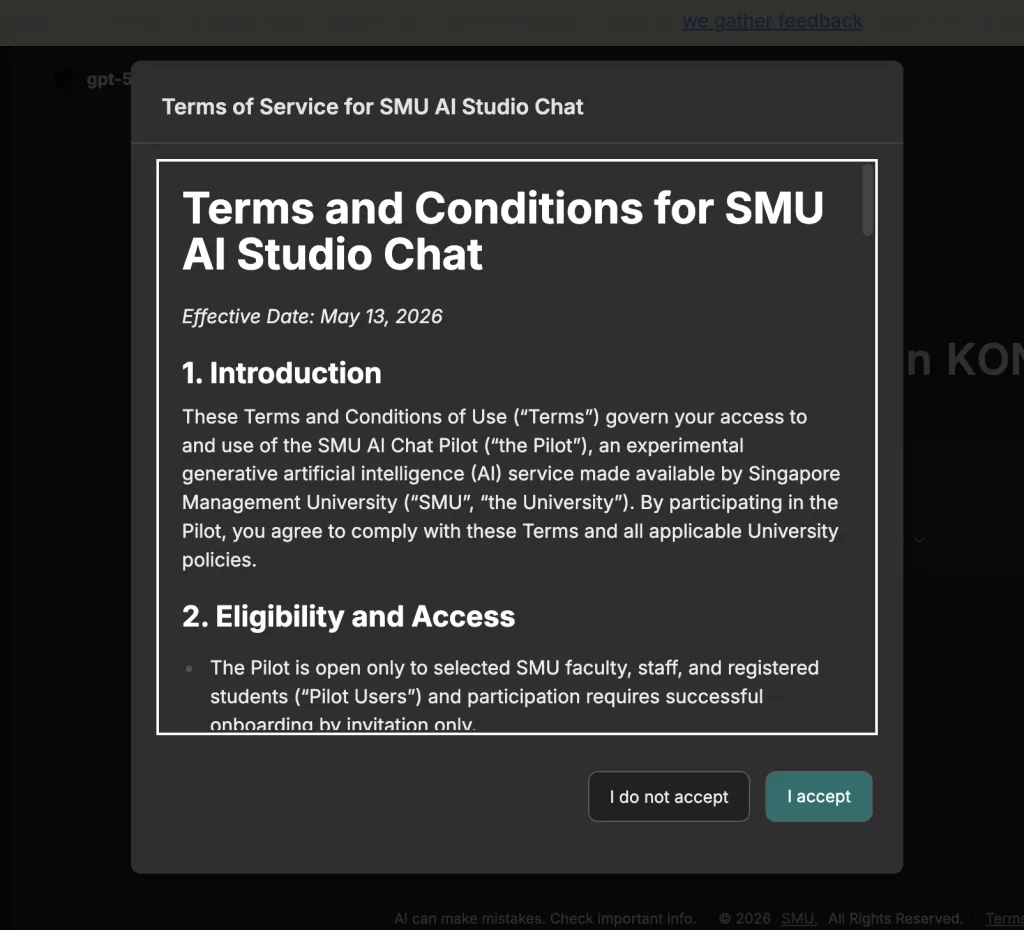
- On first login, click "I accept" under the "Terms and Conditions for SMU AI Studio Chat".
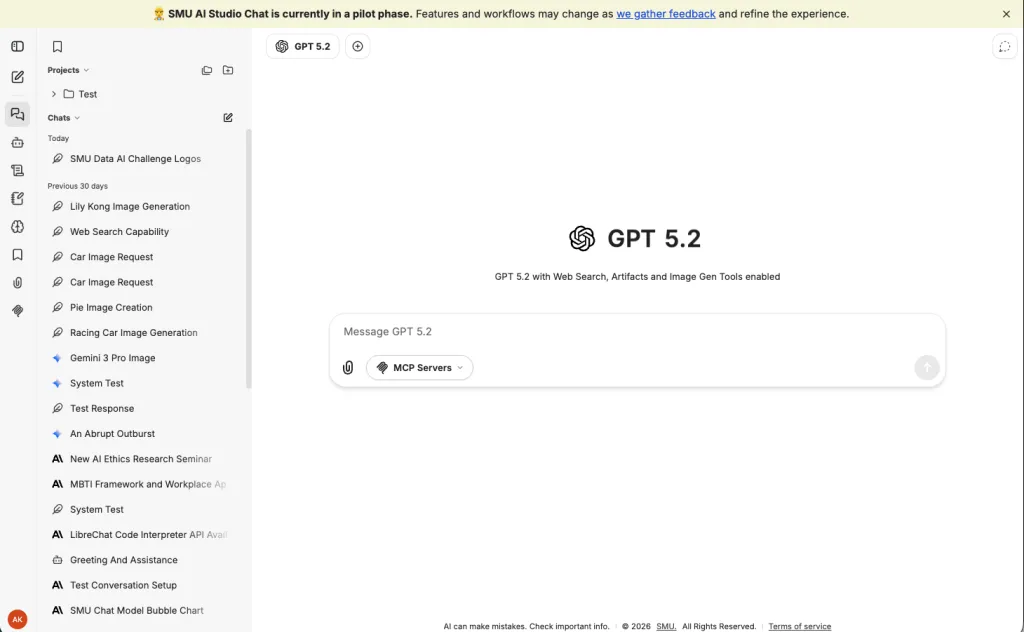
- Authenticate with your SMU credentials via Single Sign On (SSO)
You are required to accept the Terms and Conditions to use Studio Chat.
You should land on a fresh chat screen. If you are redirected back to the sign-in page or see an "Authentication Failed" message, see the FAQ entry on Access & Eligibility.
Who have access:
All SMU admin staff, faculty (including Adjunct), and researchers with an active @smu.edu.sg email account are eligible.
Visiting researchers are eligible if they have been issued an SMU email.
Who do not have access:
Students are not included in this current pilot.
If you fall outside the default group but believe you should have access, submit a request through the contact form.
2. PICK THE RIGHT MODEL
The pilot includes several models from different providers such as Anthropic, OpenAI, Google and DeepSeek.
Each model has different strengths and best suited for different scenarios. Refer the the table below for more details.
You can switch models at any time from the model selector at the top of the chat window — even mid-conversation.
All models are now agents on Studio Chat and they come with Web Search, File Search, Artifacts and Image Generation Tools.
These tools can be simply invoked by prompting / querying in the chat.
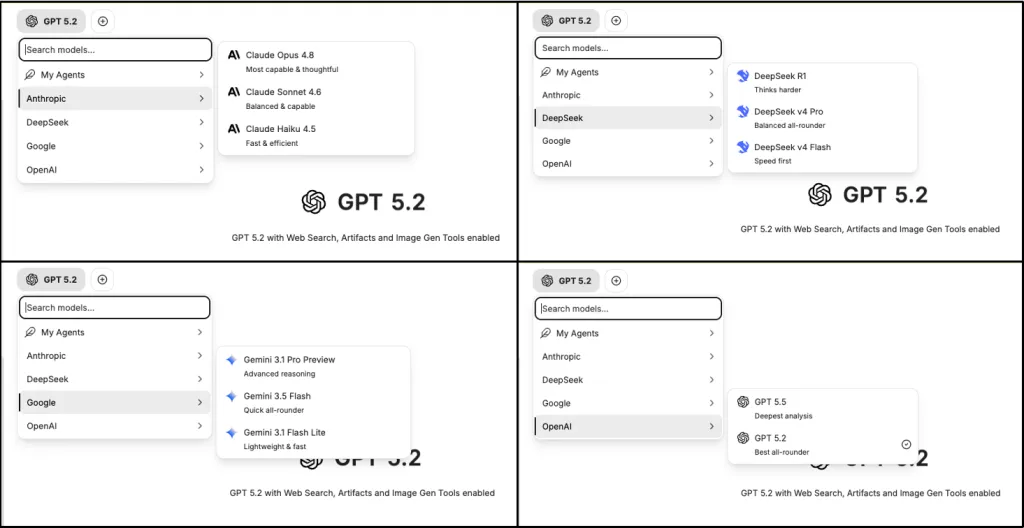
All models are broadly classified into 3 categories:
- Lightweight: fast & cost efficient
Best for quick look up of info, simple, high-volume tasks. - Daily Driver: balance default choice
Best for drafting reports, research papers, review documents, coding, brainstorming - Heavyweight: complex reasoning, slower & expensive
Best for working with long documents, complex analysis, and long running tasks.
In additional we provide access to 2 image generation models from Google:
- Gemini 3 Pro Image: Nano Banana Pro
State of the art image generation model with reasoning capabilities, well suited for complex, multi-turn image generation and editing task with enhanced image quality and generation accuracy - Gemini 3.1 Flash Image: Nano Banana 2
Image generation model optimized for a balance of price and performance. This model can be used when you create your own agents.
Note: By default, when you choose "OpenAI Image Tools" for your agents, Gemini 3 Pro Image will be used.
| Model | Provider | Category | Best for |
|---|---|---|---|
| Claude Opus 4.8 | Anthropic | Heavyweight Complex Reasoning Slower & Expensive | Long, multi-step reasoning, dense academic material, complex analysis |
| Claude Sonnet 4.6 | Anthropic | Daily Driver Balanced | Everyday tasks and reliable default — drafting, summarizing, reviewing, structured writing |
| Claude Haiku 4.5 | Anthropic | Lightweight Fast & Cost efficient | Quick replies, simple Q&A, and high-volume routine tasks where speed and low cost matter most |
| GPT 5.5 | OpenAI | Daily Driver Balanced | Flagship reasoning, nuanced writing, harder problem-solving |
| GPT 5.2 | OpenAI | Lightweight Fast & Cost efficient | Fast, cost-efficient responses for shorter prompts and routine work |
| Gemini 3.1 Pro Preview | Heavyweight Complex Reasoning Slower & Expensive | General-purpose tasks needing deeper reasoning, with token-efficient output | |
| Gemini 3.5 Flash | Daily Driver Balanced | Balanced everyday tasks — drafting, summarizing, and general Q&A with fast, low-latency responses | |
| Gemini 3.1 Flash Lite | Lightweight Fast & Cost efficient | Fastest & most economical option for simple, high-volume work like classification and short summaries | |
| Gemini 3 Pro Image | Image Gen Nano Banana Pro | State of the art image generation (text-to-image and image-to-image). Available when creating Agents. This is the default image model used by "OpenAI Image Gen Tools" in Studio Chat. | |
| Gemini 3.1 Flash Image | Image Gen Nano Banana 2 | Faster, lower-cost image generation (text-to-image and image-to-image). Available when creating Agents. For quick iterations and high-volume creation. | |
| DeepSeek R1 | DeepSeek | Heavyweight Complex Reasoning Slower & Expensive | Step-by-step reasoning, mathematics, logic problems |
| DeepSeek V4 Pro | DeepSeek | Daily Driver Balanced | General-purpose tasks where you want token-efficient responses |
| DeepSeek V4 Flash | DeepSeek | Lightweight Fast & Cost efficient | Quick, low-cost answers for shorter prompts and high-volume routine work |
A few practical tips:
- Start with Daily Driver modelsfor most tasks; switch to Heavyweight if the task needs deeper reasoning or more complex analysis.
- Different models will produce different outputs for the same prompt. If one model's response isn't useful, try another before rewriting your prompt.
- All requests are routed through SMU's internal proxy (LiteLLM); no model has a "better" connection than another.
- Track how much credits is consumed per prompt/query. If the credits consumed are too high (more than 1 million credits), switch to less costly models such as Daily Driver or Lightweight models and continue with your task and keep under your credit limits.
- When your chat history is too long for a session (usually more than 25 turns), your context window become large and every query sent will consumed a lot of credits. You can always start a new chat session to reduce the context windows and reduce the credits consumed per chat turn.
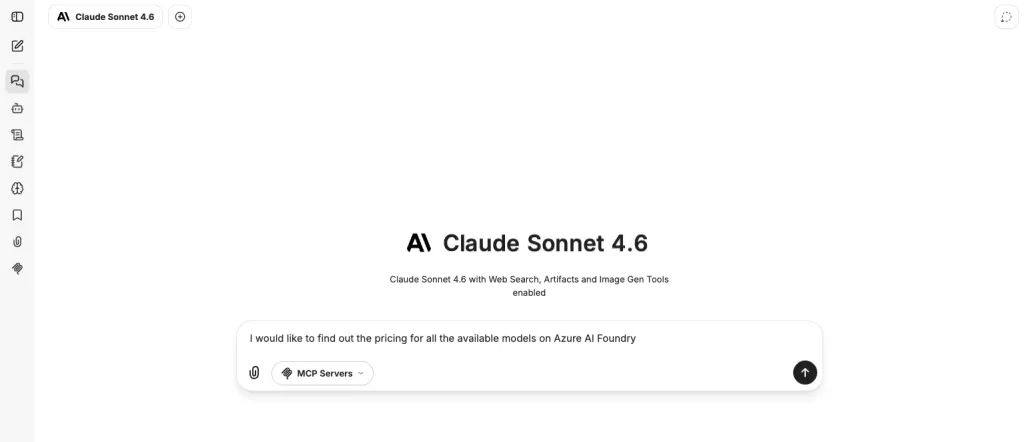
Example for Claude Sonnet 4.6:
Example for Claude Opus 4.8:
Please think deeply about this problem before answering:
- Search the web to find out what are the latest developments in VLM space in the last two years
- Suggest a minimum of three reviewable sub-topics, with a one-line case for each
- Evaluate the suggested sub-topics based on novelty and research impact
- Decide if the suggested sub-topics is sufficient and provide good coverage for the literature review
- Provide reasoning for your decision and breakdown your reasoning within "thinking" tags
- Identify hidden flaws or edge cases in your initial analysis and explain how you are accounting for them
- Conclude with an actionable, prioritized list of recommendations and next steps
Ensure your tone is highly technical, precise, and objective.
3. SEND YOUR FIRST PROMPT
Type your prompts in the message box and press Enter to get started. (or Shift+Enter for a new line without sending).
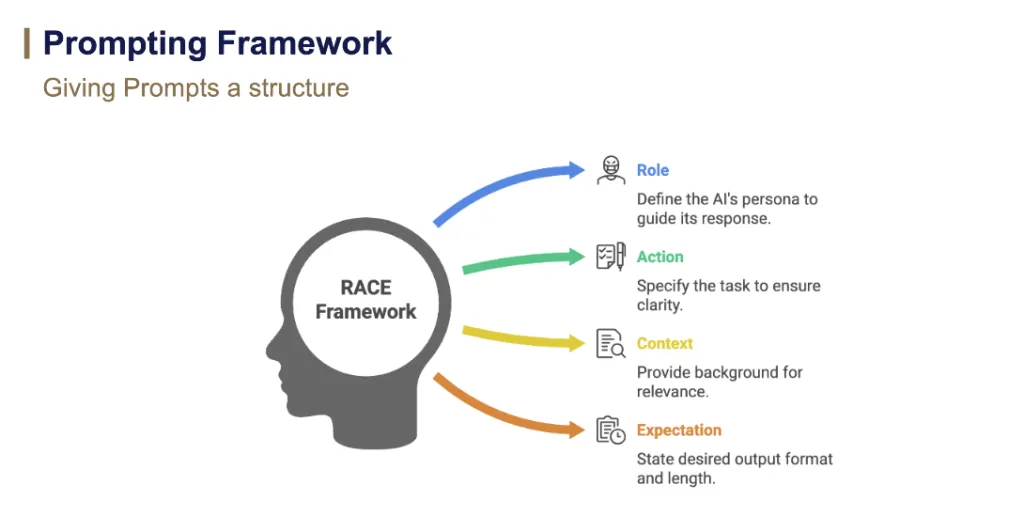
A good prompt usually follows the RACE Framework:
- Role — define a persona the AI should act as
- Action — what task to complete.
- Context — what the task is for, who it's for, constraints, goals or any background relevance
- Execute — what output, format, length and delivery you want produced (a summary, an outline, some code, an email response, etc.).
Think of prompting like giving a recipe to a chef. A vague instruction like "Make food" yields unpredictable results. But a specific recipe, like "Make a vegetarian pasta dish in 20 minutes with tomato sauce and mushrooms" leads to a delicious, expected outcome. Prompts are your recipe - the clearer the prompt, the better the outcome.
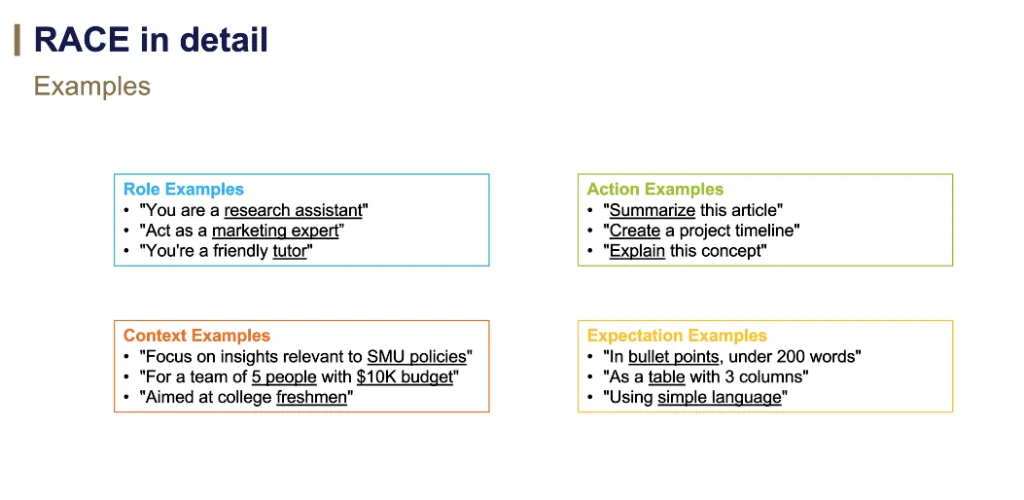
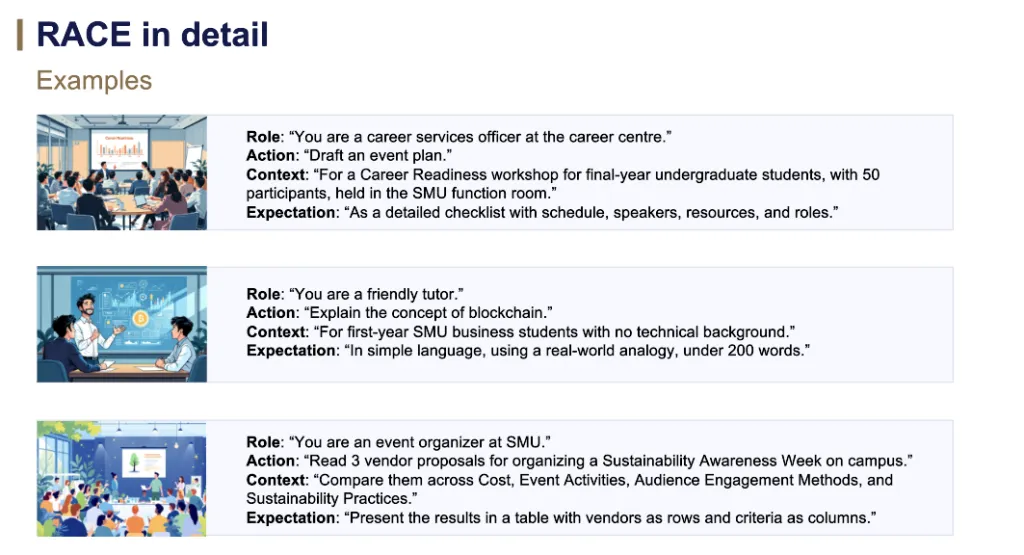
Example:
Prompts to get started with Studio Chat
Below are a few prompts to get started. If you want to see more prompts to try out, please refer to our Prompt Gallery.
Generate an event logo for SMU Data & AI Challenge 2026.
Follow the theme: "From Curiosity to Impact — Amplified by Data and AI"
Provide me with a full list of pricing for all the available AI models on Azure AI Foundry.
Prompt 1 - Seed your role
I'm the Vice President of Human Resources at Singapore Management University. My areas of focus are talent strategy, organisational development, and the responsible use of AI in HR processes.
Please draft a 150-word professional bio for me, suitable for the programme booklet of an upcoming HR leadership conference where I'll be a panellist on "AI and the Future of Work in Higher Education".
Prompt 2 - Test recall from memory
Draft a 100-word LinkedIn post announcing that I'll be speaking at an upcoming industry event next month.
Before starting this prompt, download latest SMU Annual Report from here.
Click on the paperclip icon and choose File Search - Upload Documents as Knowledge-base
I've attached the SMU Annual Report. Using only information from this document, please:
1. Summarize the three most significant strategic priorities highlighted by the President or Chairman for the reporting year.
2. List any new academic programmes, research centres, or partnerships announced.
3. Pull out the total student enrollment figure and the staff/faculty headcount, and cite the page or section where you found each number.
If a piece of information is not in the document, please say so explicitly rather than guessing.
Generate a Chart.js artifact showing a comparison of relative response speed and cost across the 11 chat models in Studio Chat: Claude Haiku 4.5, Claude Sonnet 4.6, Claude Opus 4.8, GPT-5.2, GPT-5.5, DeepSeek-V4-Flash, DeepSeek-V4-Pro, DeepSeek-R1, Gemini 3,1 Flash Lite, Gemini 3.5 Flash, Gemini 3.1 Pro Preview.
Use illustrative values for speed (1–10 scale) and cost (1–10 scale), clearly labelled as illustrative. Render as a bubble chart with model name on the bubble. Use a clean, professional style.
4. USE THE BUILT-IN FEATURES
The pilot enables the following features. You can find most of them in the chat interface — either in the input bar or the left-hand sidebar.
Agent Builder
Agent builder allow you to create your own agents to run, using Studio Chat interface to interact with your agents. All models that are available now in Studio Chats are agents created using the Agent Builder and they come bundled with Web Search, Artifacts, File Search and Image Gen tools. This means, you no longer need to toggle on the tools to use them and can simply invoke them with human language, via the chat interface on Studio Chat.
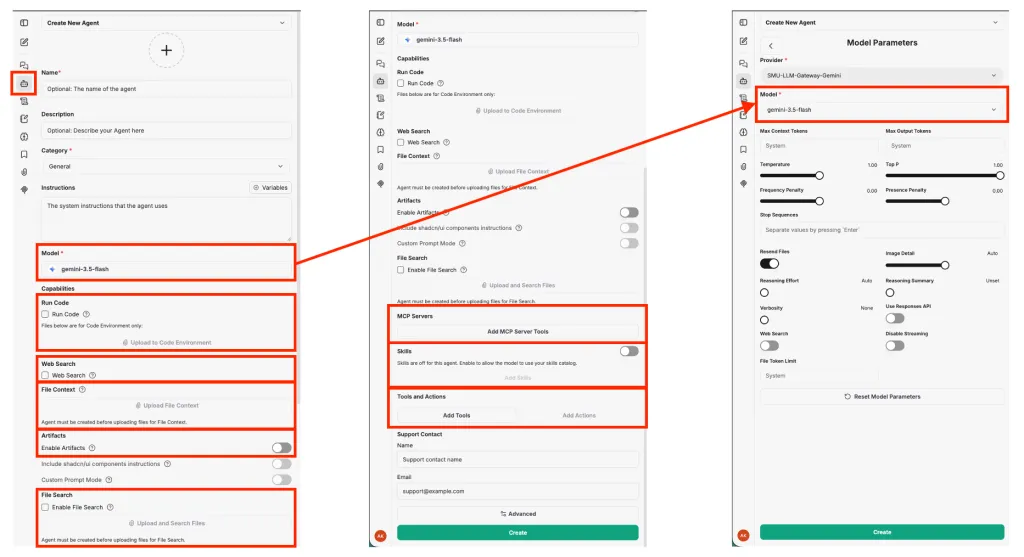
To access Agent Builder, click on the robot icon on the left-hand side bar. Agent Builder provide a suite of capabilities that you can add to your agents. These capabilities are:
- Run Code - execute code generated by the AI Models in a controlled, sandbox environment.
- Web Search - allows agent to do internet web search
- File Context - allows agent to store extracted text from files as part of its system instructions
- Artifacts - allows agents to generate and display interactive content such as React components, HTML and diagrams
- File Search - enables RAG functionality for semantic search and context-aware response based on uploaded documents
- MCP Servers - add MCP Tools for your agents to connect to external services
- Skills - allows agents to load specified reusable instructions under the skills catalog
- Tools and Actions - enhance agents with various built-in tools or custom build actions using OpenAPI specs
To create an agents, you will need to fill up the fields with red asterisk. Minimally, an agent requires a name, selecting a category and choosing a model and model provider that you want the agent to use.
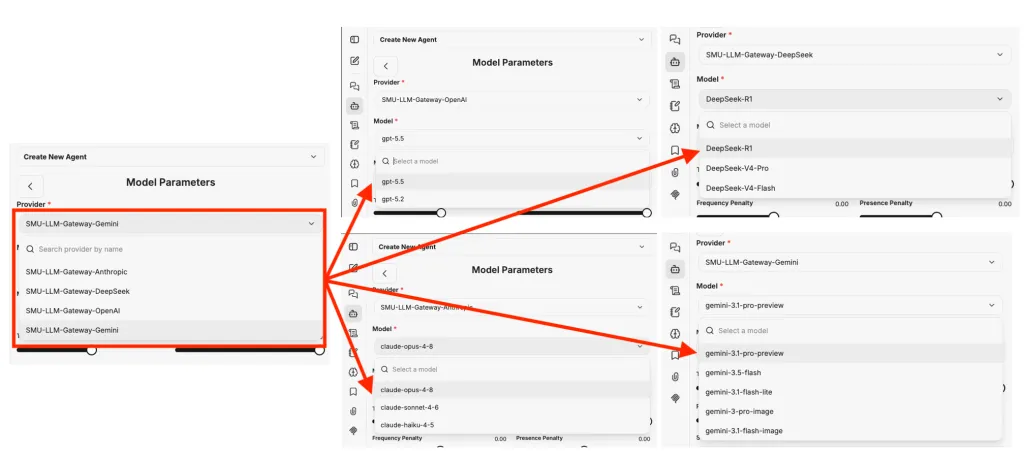
Click the model name to set the model parameters. The model parameters you can preset for your agents are:
- Max Context Tokens - Max number of context tokens to provide to model.
- Max Output Tokens - Max output tokens the model should use.
- Temperature - Controls how deterministic or "creative" the model responses should be, from a scale of 0 to 2.
- Top P - Controls how models select tokens for output, from a scale of 0 to 1.
- Frequency Penalty - Positive values penalize new tokens based on their existing frequency in the text so far, decreasing the model's likelihood to repeat the same line verbatim.
- Presence Penalty - Positive values penalize new tokens based on whether they appear in the text so far, increasing the model's likelihood to talk about new topics.
- Stop Sequences - Stop tokens where the API will end response if encountered these tokens. Can set up to 4 sequences of tokens.
- Resend Files - Resend all previously attached files
- Image Detail - Resolution of image for vision requests. Settings available: Low, High, Auto
- Reasoning Effort - Constraint reasoning effort if applicable to model. Settings available: Auto, None, Minimal, Low, Medium, High, Extra High
- Reasoning Summary - For use with OpenAI Response API only. Provide a summary of the reasoning done by the model. Settings available: Unset, Auto, Concise, Detailed
- Verbosity - Constraints the verbosity of model response. Settings available: None, Low, Medium, High
- Use Responses API - Use Responses API instead of Chat Completions which includes extended features.
- Web Search - Enable OpenAI built-in web search capabilities. (This is specific to OpenAI and not the same as the Web Search capabilities for the agent)
- Disable Streaming - Disable streaming response and receive the complete response at once.
- File Token Limit - Set maximum token limit for file processing to control costs and resource usage.
There are 4 Providers to choose from - Anthropic, OpenAI, Google, DeepSeek.
For each providers, there is a list of Models to choose from.
In addition, you can enhance your agents capabilities by adding Agent tools (Tools and Actions), MCP Server Tools (MCP Servers) and Skills (Skills).
This expands the type of tasks your agents can perform.
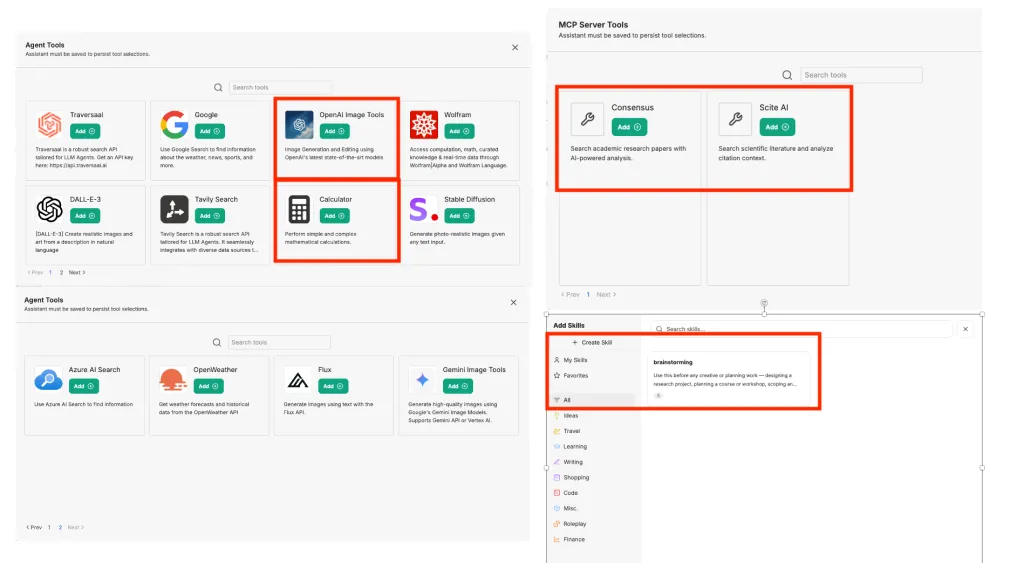
Click on Add Tools under Tools and Actions, to add Agent Tools. Currently the available agents tools are:
- OpenAI Image Tools (allow image generation and image editing, model default to Gemini 3 Pro Image)
- Calculator (allow programmatic calculation instead of using the models to resolve math calculations)
Click on Add MCP Server Tools under MCP Servers, to add MCP Tools. Currently the available MCP Servers tools are:
- Consensus (Search academic research papers with AI-powered analysis)
- Scite AI (Search scientific literature and analyze citation context)
If you have a MCP Servers Tools that you wish to add to your agents, please raise a request through this contact form.
Click on Add Skills under Skills, to add Skills. You can create skills or import skills.
By adding Skills in Agents, you can limit the skills an agent can use for this specific agents.
By default, when Skills are enabled in Agents, your agents will have full access the the catalog of globally shared Skills as well as the ones you have created yourself.
For more information on Skills, please scroll down the the Skills section below.
Skills
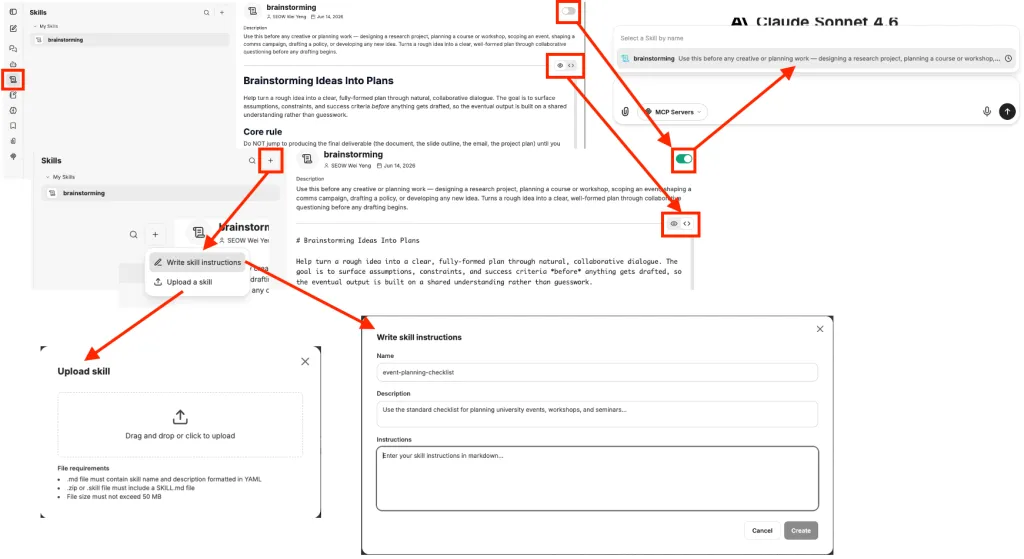
Skills extend agents capabilities in Studio Chat by giving it access to specialized knowledge and instructions as well as workflow. Skills are folders of instructions, scripts and resources that Studio Chat loads dynamically to improve performance on specific tasks such as handling excel, word docx, pdf and pptx files.
A skill is centered on a "SKILL.md" file with a frontmatter that describes when the skill should be used and the markdown body gives the agent the procedure, rules, examples or references to follow. Skills can come bundled with short scripts of executable code and can contain assets with templates or resources such as brand or writing guidelines specified to your needs.
Skills are excellent for repeatable task such as:
- Applying brand or writing guidelines (often a company wide standard)
- Following internal review checklists
- Running a specific research paper workflow
- Priming a specialized tool workflow
- Packaging reusable scripts, references, and assets with an instruction file
To access Skills, click on the scroll icon on the left-hand sidebar. You are able to create skills in 2 ways:
- Write skill instructions (instructional skills with no additional bundled files)
- Upload a skill (possible to import anthropic skills)
Once you created a skills you can:
- toggle between markdown preview or raw format of the SKILL.md file
- toggle the skills to turn it on or off on the top right corner
If you toggle skill on, you can select the skills for invoking by typing "$" and selecting the skills for the chat session.
Skills can also be added to Agents. You can enabled the full catalog of skills you have created / made available to you or you can scope it further to specific skills for specific agents.
A model can invoke a skill once the skill catalog is enabled for the model to reference and doesn't require you to explicitly invoke the skills. However, if you want to have more control, you can always manual select skills to invoke with "$".
For more information and learning more about Skills, please refer to the links below
Artifacts
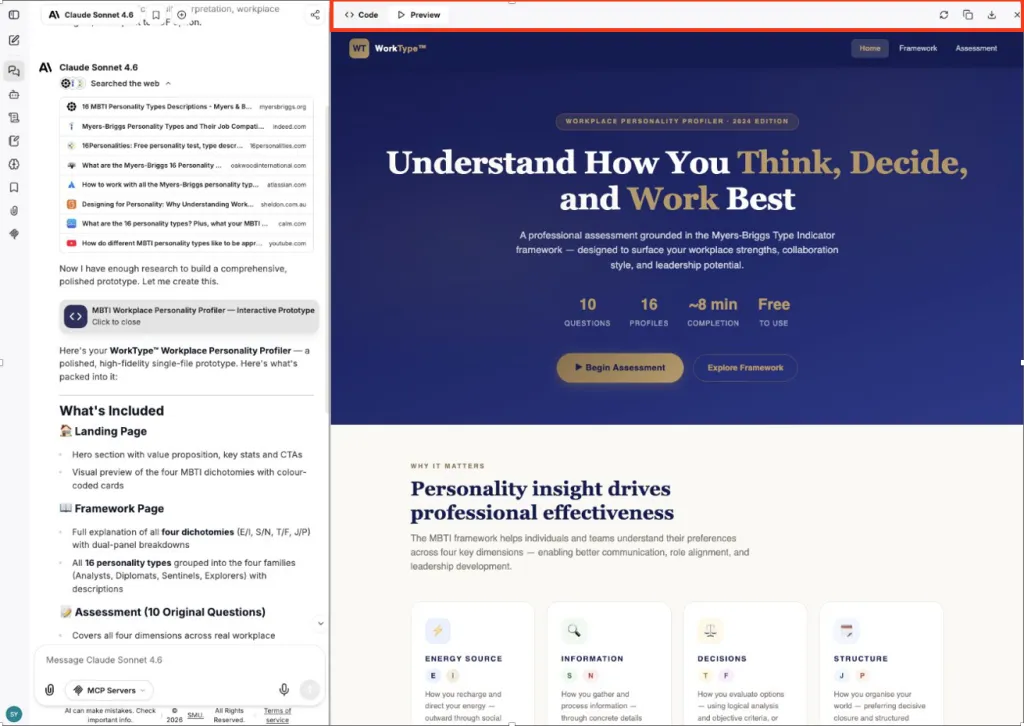
Turn any idea or dataset into interactive and shareable contents such as React components, HTML and diagrams/chart using Artifact.
Artifact tool is invoked when the model detect a request to create a prototype of website, UIs or diagrams and render the output at the side panel.
You can toggle between actual code or preview, edit the code, copy, download or share the output files without losing the conversation.
Artifacts work best with the Claude, Gemini and GPT models.
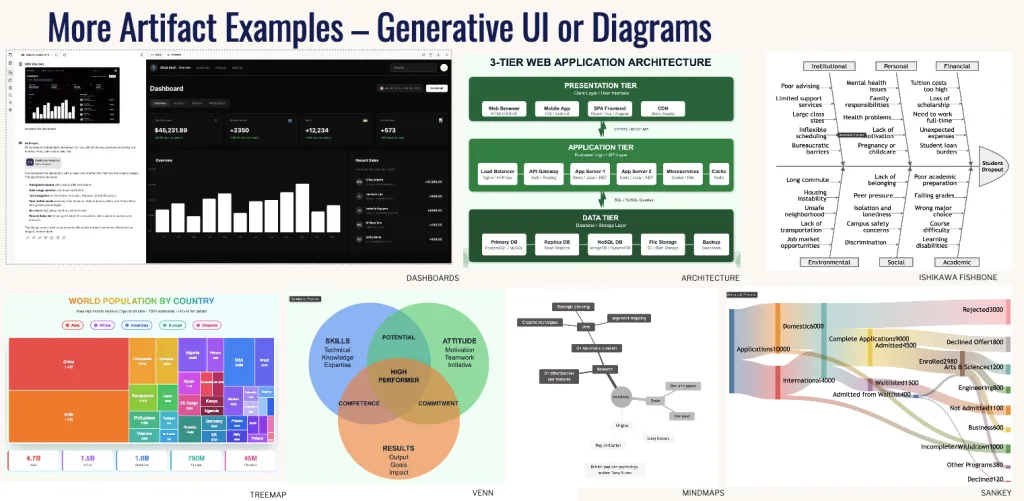
Don't just stop at bar or line chart with Artifact. Explore the vast possibilities of more complicated diagram such as treemap, venn, mindmaps, sankey, fishbone, architecture, dashboards and even interactive quizzes, games, calculators and many more. You can also provide Studio Chat a screenshot reference of a diagram or dashboard that you would like to build and get Studio Chat to replicate it, setting it in the style and colors you want together with Skills.
Memory
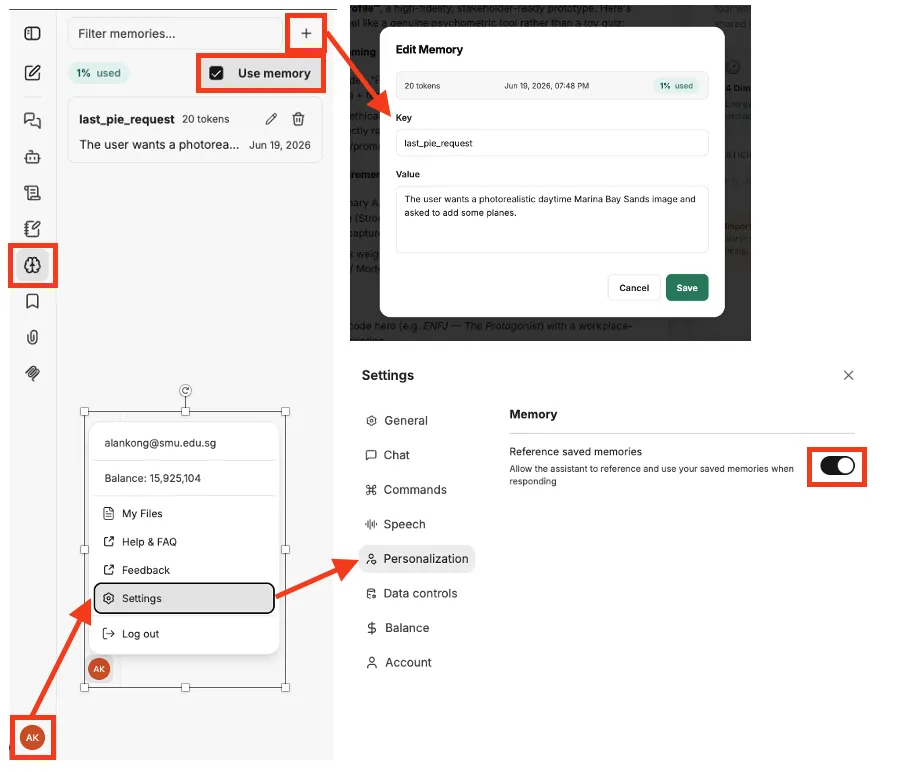
Memory lets the assistant remember preferences and recurring context across separate conversations — for example, your job role, your faculty, the project you're working on, or your preferred writing style. You can view, create, edit or delete memories at any time from left-hand sidebar by clicking on the brain icon.
To get started using memory, first click Profile icon → Settings → Personalization and toggle on "Reference saved memories". After you have done this, click on the brain icon on the left-hand sidebar to access your saved memories and check the box "Use memory" on the top.
Memory is per-user. Nothing in your Memory is shared with other users. You can check how much tokens was used for each Memory, the date and time the Memory was last modified and the percentage of your Memory token limit you have used up.
Web Search
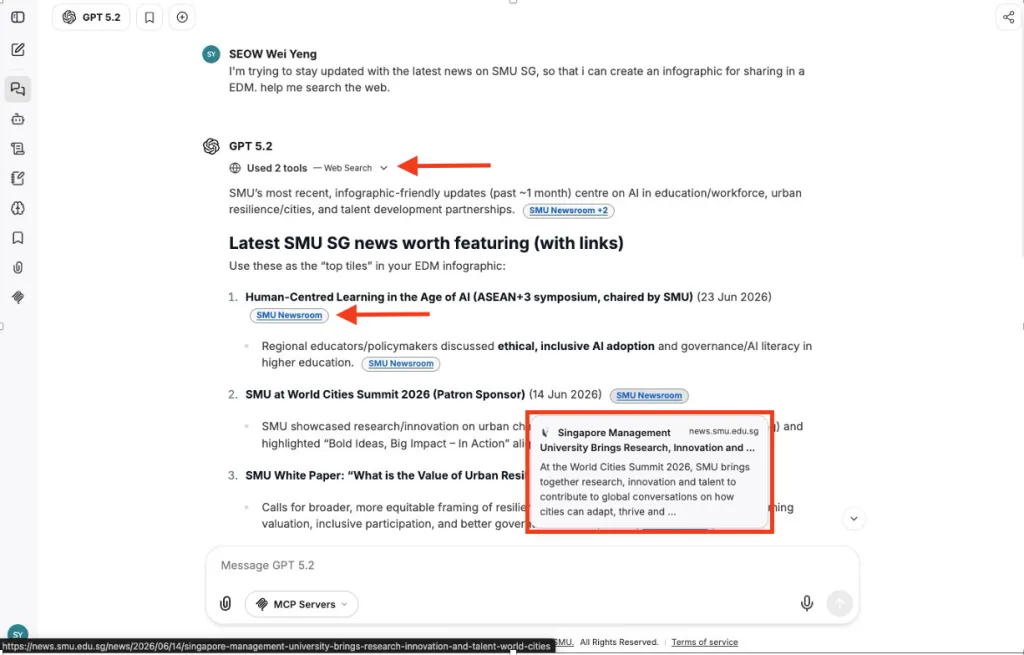
Web Search tool is invoked when the model detect a request to search the internet. Use this tools to reduce hallucinations and ground responses with real, up-to-date information fetched from the internet that is beyond the model's training cut-off. Expand the Web Search tools in the chat response to see what links and resources were used to generate the final response. Click on the citation to navigate to the source links and do further research.
File Upload & File Search
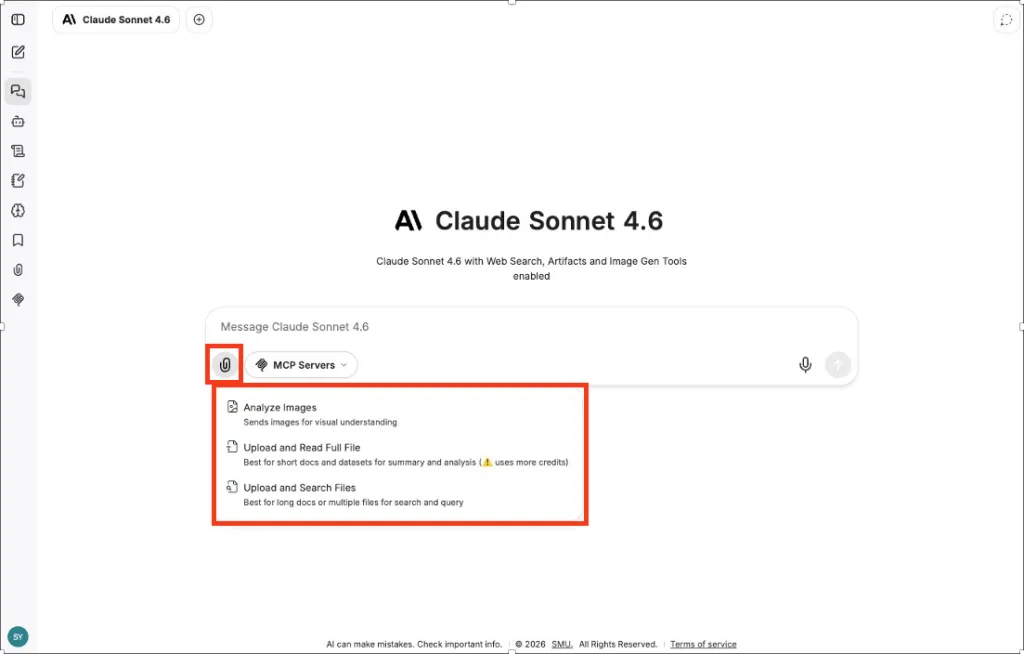
You can attach files to a conversation using the paperclip icon. The platform supports:
File Formats Supported | Analyze Images | Read Full File | Search Files |
Images (PNG, JPG, GIF) | ✓ | — | — |
Documents (PDF*, DOCX, PPTX, TXT, MD) | — | ✓ short docs | ✓ long docs |
Data files (CSV, XLSX) | — | ✓ | — |
Code files (SQL, YAML, scripts) | — | ✓ | ✓ |
There are 3 ways to attached files:
- Analyze Images — Attach an image when sending a message — ask the AI about it, or use it as a visual reference.
- Upload and Read Full File — Loads the entire file into context when you send a message — gives the AI full fidelity, but uses more credits.
- Upload and Search File — Uploads the file and retrieves only the most relevant sections when you send a message.
For long documents with many pages (more than 3 pages), you can use "Upload and Search File" which utilizes a retrieval-augmented generation technique (RAG) to chunk and index the content so the model can answer questions by retrieving only relevant sections. For shorter files (less than 3 pages), use "Upload and Read Full File" for content to be uploaded as raw text directly into the context for the AI model.
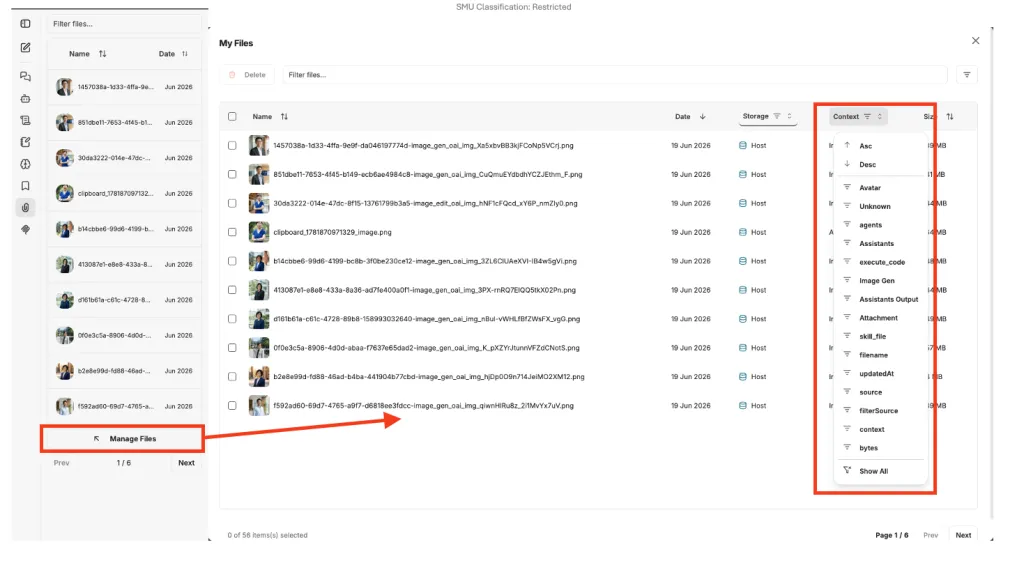
You can browse and find all your uploaded files by clicking on the paperclip icon on the left sidebar. Click on "Manage Files" to go deeper.
You can filter for certain files or sort files by name, date, storage, context and size. You can also delete unused files.
In addition, generated files from tools, assistants and image gen models as well as upload files for skills and agents can be found here as well.
Image Generation and Editing
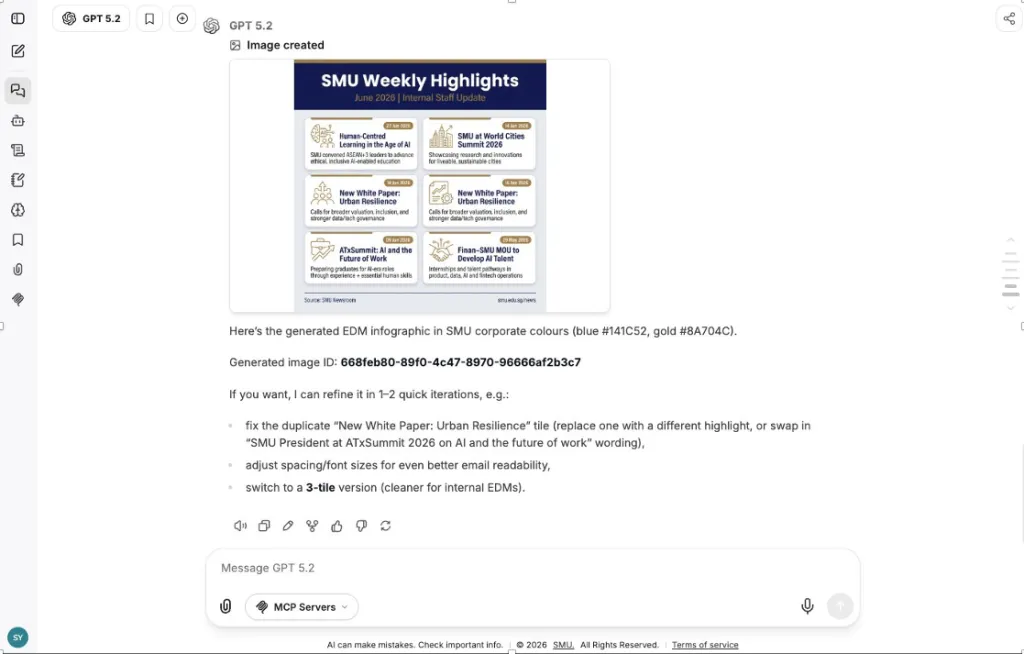
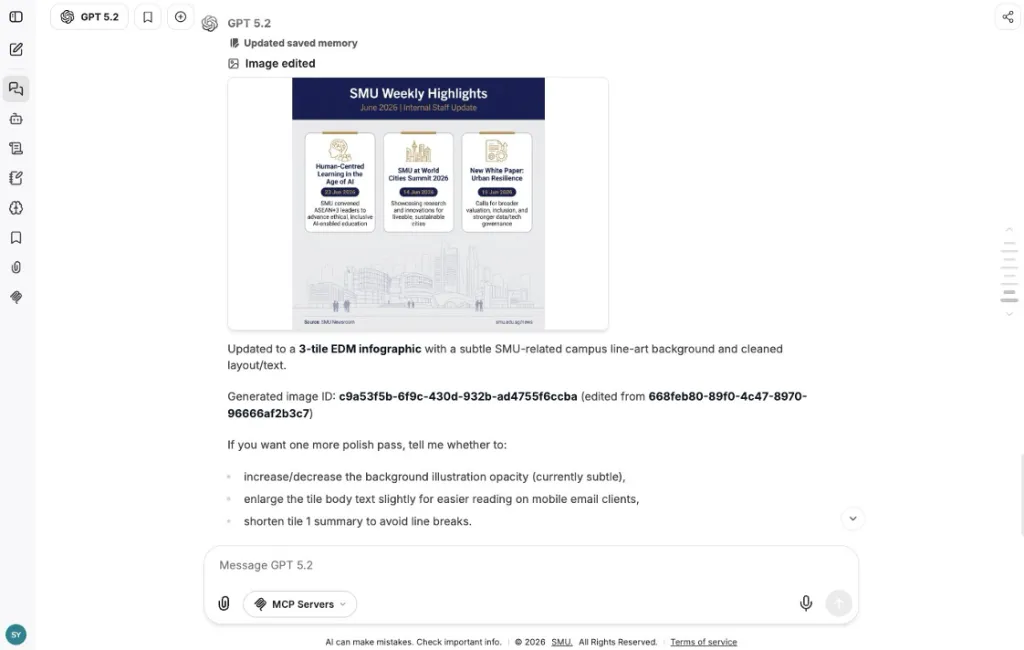
Image Generating and Editing tool is invoked when the model detect a request to generate image or edit an existing image. Both text-to-image (describe what you want and generate) and image-to-image (upload a reference image by clicking on the paperclip icon and describe changes) are supported. The default model used Gemini 3 Pro Image (Nano Banana Pro) from Google.
MCP Servers
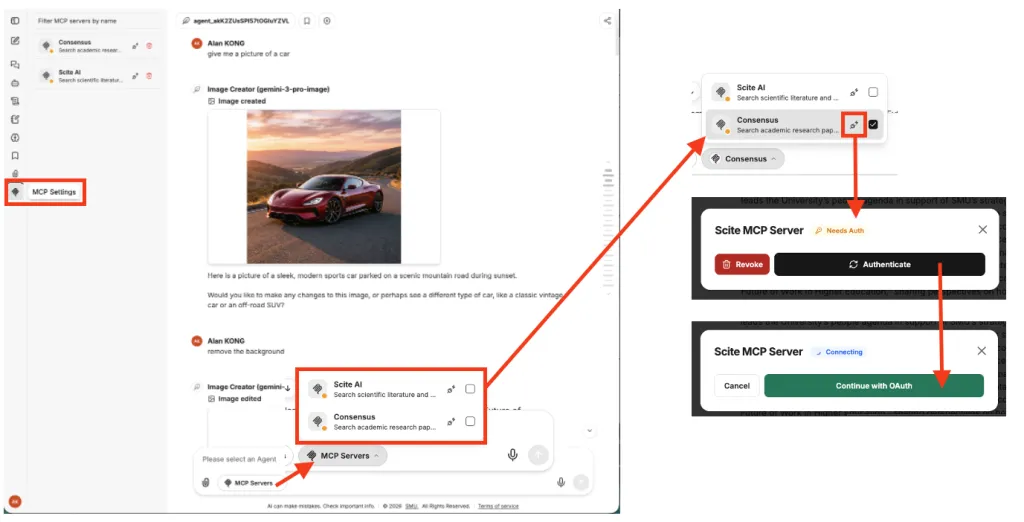
MCP Servers are supported on Studio Chat. Below are the available MCP Servers:
- Scite AI - Search scientific literature and analyze citation context
- Consensus - Search academic research papers with AI-powered analysis
The MCP Servers tool is invoked upon a direct request or if the model detect the task is relevant to the set of capabilities the MCP Server offers.
You can access the available MCP servers either by clicking on the MCP icon on the left-hand sidebar (icon below the paperclip icon) or by selecting from the tools icon at your message box. For some MCP Servers that uses paid services, you would need to authenticate again for the particular services you have access to before you can use it. You can select more than one MCP Server to use in each chat session.
Bookmarks
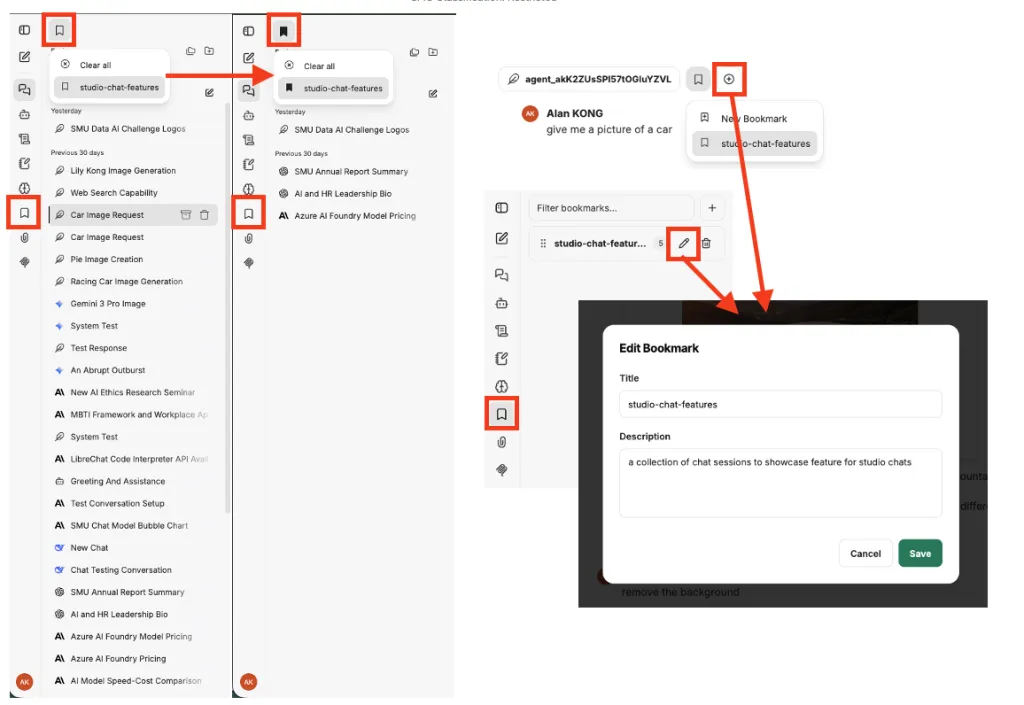
Mark important conversations with a bookmark so you can find them quickly later. Bookmarks appear in a filtered view of your chat session history. You can find the bookmark icon on the left-hand sidebar or at the top, right next to the model selection icon. You can create or edit bookmark, specify a name and description of the bookmark or delete the bookmark.
Projects
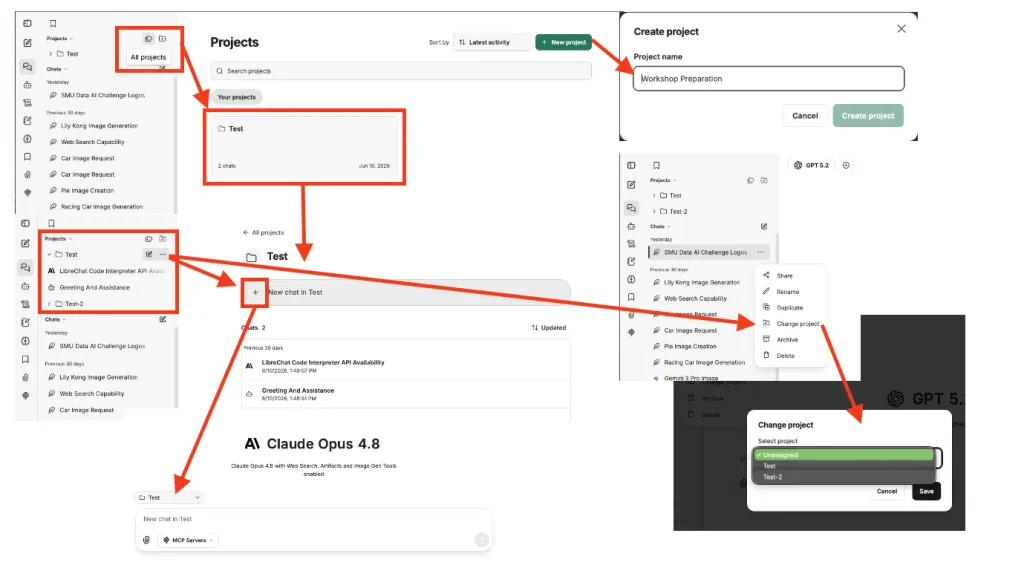
Use projects to organize related conversations into named workspaces. You can create projects, add existing conversations to a project, start a new conversation within a project and change conversations to another project. You can also sort, search, rename or delete projects.
Projects are per user. Other users cannot see your project list.
Saved Prompts
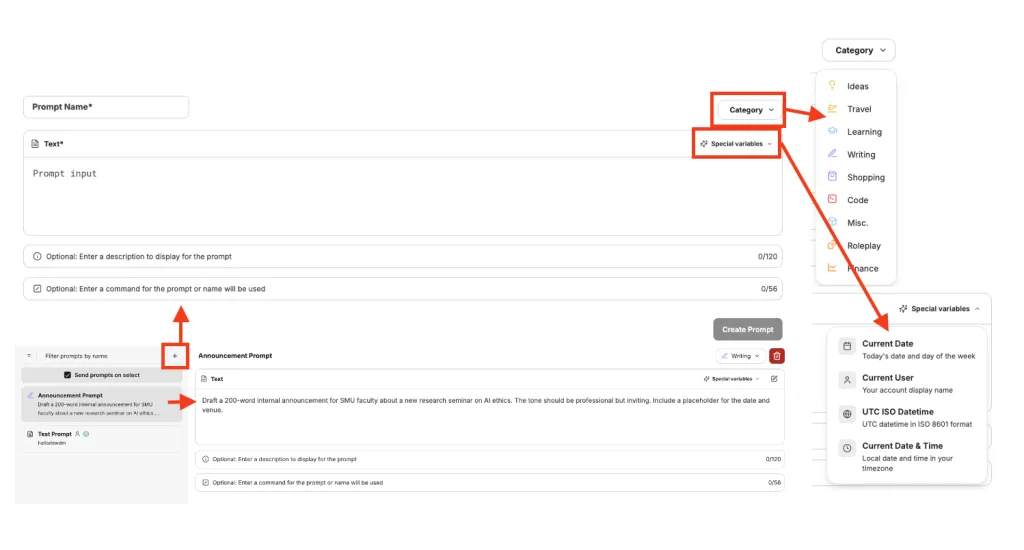
Save useful prompts for reuse. You can preview, create, edit and delete saved prompts. Add a prompt title, the prompt, prompt description and a special command shortcut for your saved prompts. You can also add a category to the saved prompts and include special variables such as date & time or current account display name to the saved prompts.
Multi-Conversation
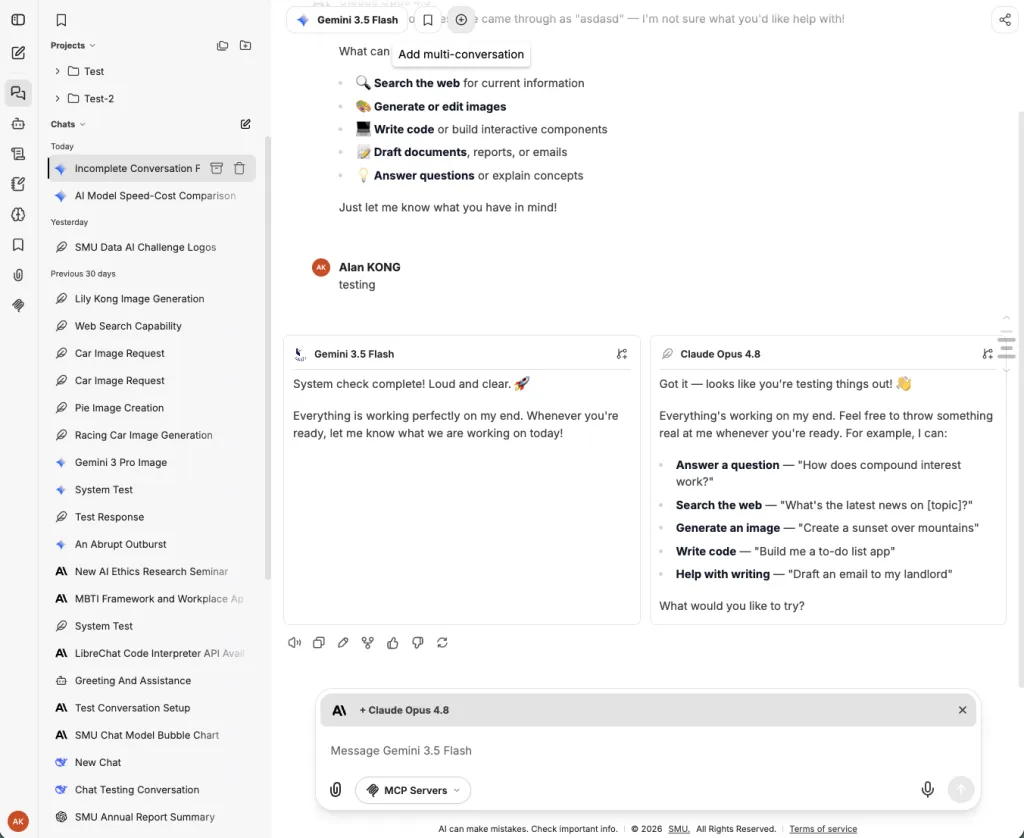
Branching
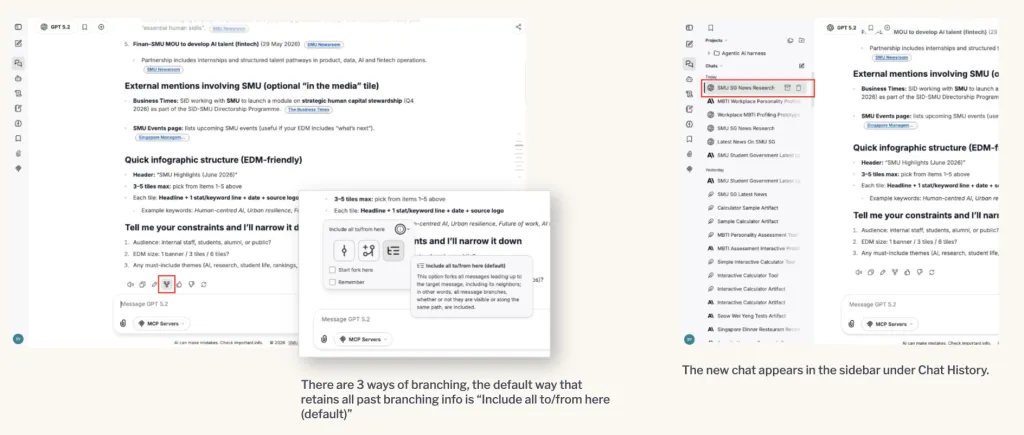
You can choose from 3 ways of branching. Each option copies a different set of message relative to the target message.
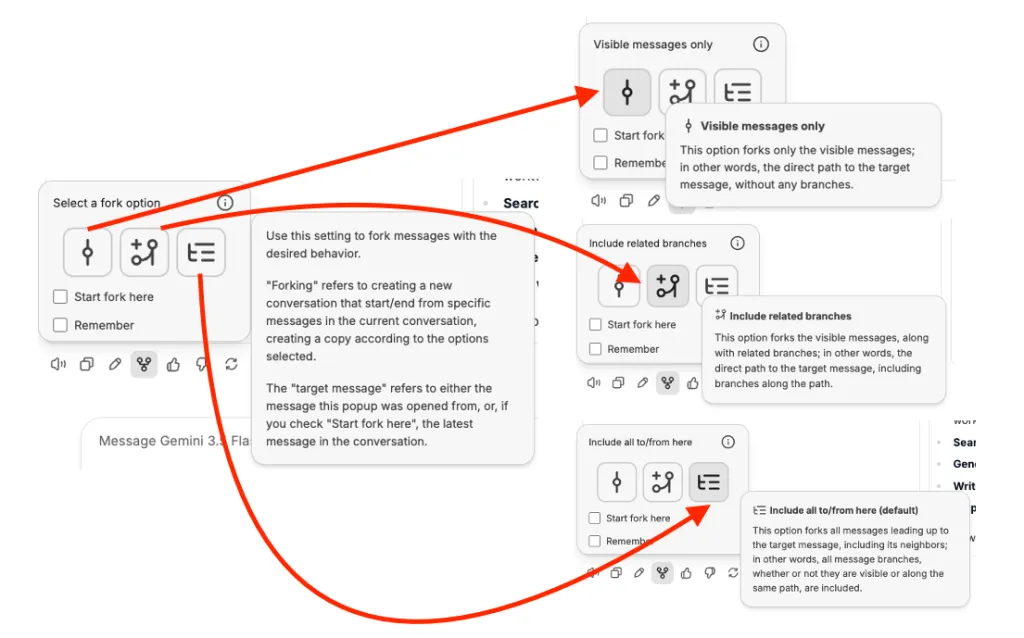
- Visible messages only - forks only the direct path to the target message, excluding any branches
- Include related branches - Copies the direct path to the target message along with any branches that sit along that path
- Include all to/from here - Default option, Copies every message leading up to the target, including neighboring branches, whether or not they are visible or on the same path.
In additional, you can "Start fork here" to fork from selected message to the latest message in the conversation or "Remember" to saves the options you select and applies them to future forks, so you do not have to set them each time.
Hover over the icon for display information about these options. Once you click on the branching options, a new chat session will appear on the left-hand side bar under your chats.
Temporary Chat
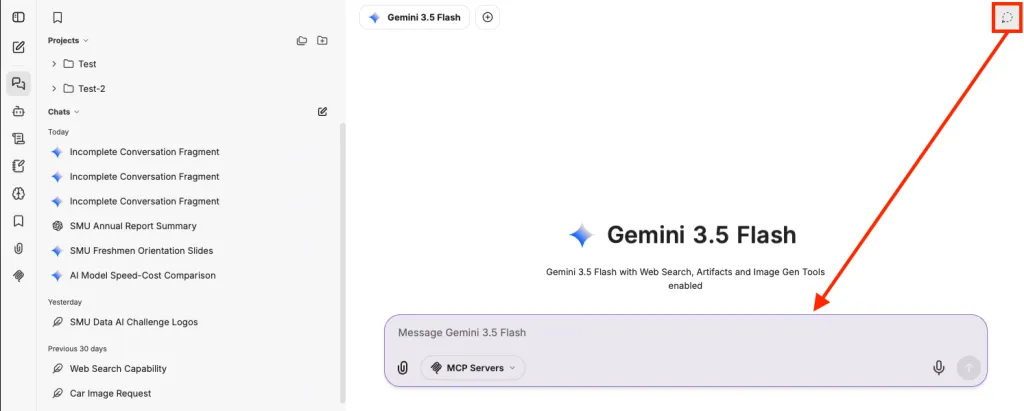
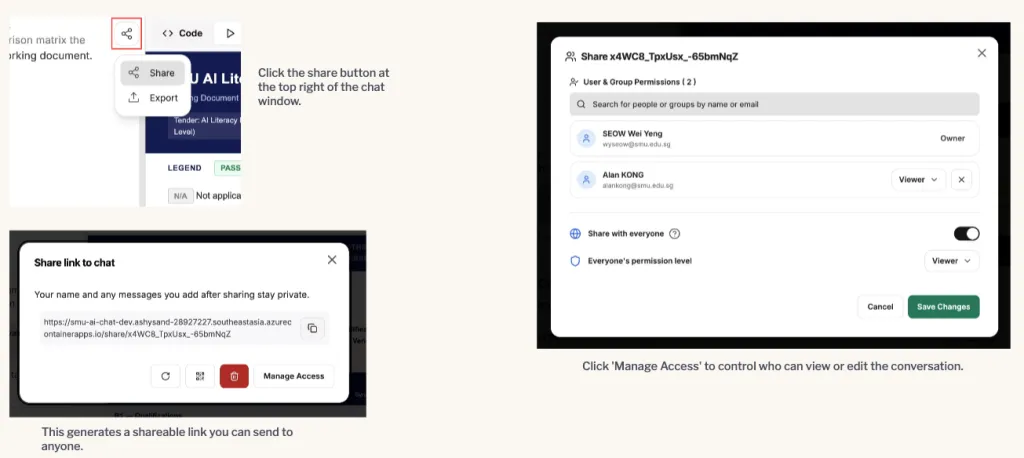
Shareable Links
5. Manage your conversations
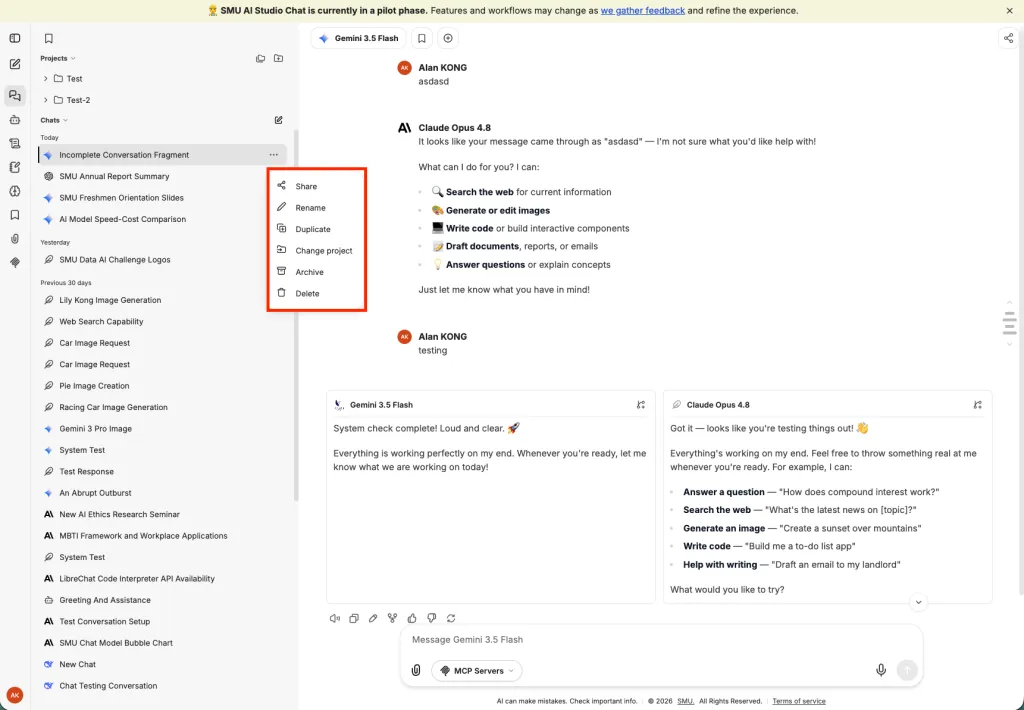
You can organize your chat conversations with Projects and Bookmarks. Refer to these section above for more details.
You can click on the three-dot menu beside each chat sessions to manage chat conversations.
- Share a conversation via a share link or QR code.
- Rename a conversation by clicking its title in the sidebar
- Duplicate a conversation and its history from the three-dot menu next to its name
- Change project and group chat conversations into a project
- Archive a conversation if it is no longer relevant or to declutter your chat history
- Delete a conversation from the three-dot menu next to its name.
There are several settings you can set to manage chat in Studio chat. To access settings, click Profile icon → Settings
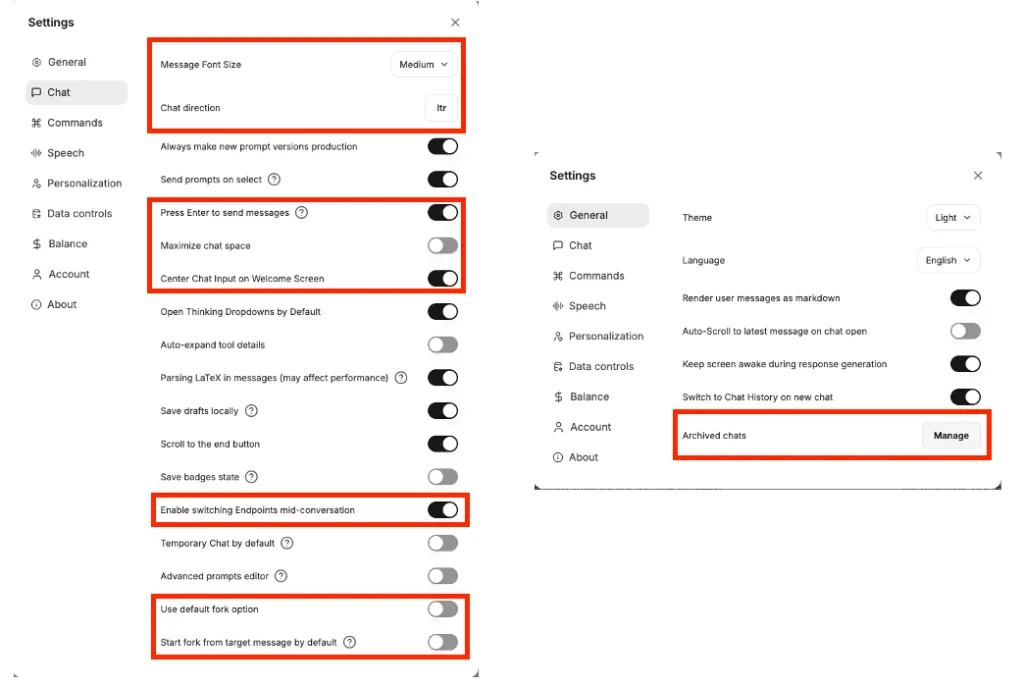
Under the General tab, you can choose the language to use Studio Chat, enable auto scroll to latest message on chat open and several other settings for general chat usage. You can also access any archived chats in this tab.
Under the Chat tab, you can control the look and feel of the chat interface as well as enabling some functionality in the chat interface such as allowing of switching endpoints (models) mid-conversation or using the default fork option when branching conversation.
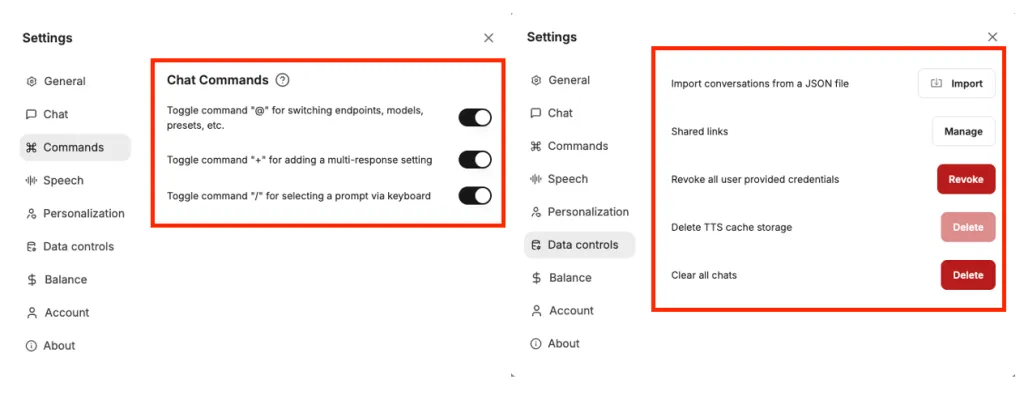
Under the Commands tab, you can enabled keys to trigger special chat commands such as switching endpoints, models, presets etc with "@", toggling multi-response setting with "+" and using "/" to select a prompt in your saved prompts. In addition, you can toggle Skills using "$".
Under the Data Controls tab, you can manage share links of chat conversation, revoke access to them, import conversations from other sources in JSON format, revoke all user provided credentials and clear all chats.
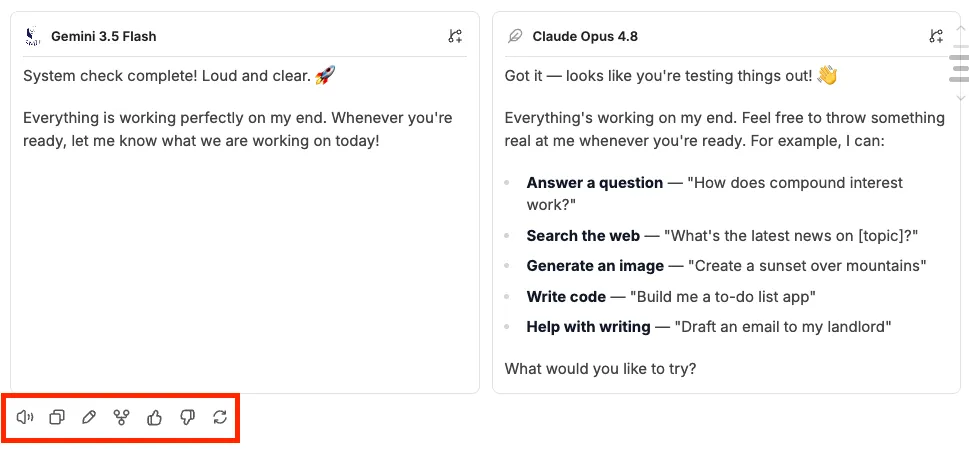
Under each responses from the model you will find 7 icons below. Starting from left to right:
- Read Aloud icon to get Studio Chat to read out the response in audible sound.
- Copy icon to copy response content to clipboard for you to paste elsewhere.
- Pencil icon to edit response content and save the chat messages or save and resubmit to the AI models.
- Branch icon to select branching options.
- Thumbs up icon to provide good rating to response content.
- Thumbs down icon to provide bad rating to response content.
- Regenerate icon to get the AI models to regenerate the response by resubmitting a requests to the AI models.
6. What data is allowed?
SMU AI Studio Chat is in pilot phase and only approved for Unrestricted (Low Risk) and Restricted (Medium Risk) data only. This applies to both general institutional data under SMU Data Classification Scheme and research data under SMU Research Data Management Policy.
You may use the platform for:
- Information already in the public domain or intended for public dissemination
- Drafting general communications, summaries, outlines, code, and analysis where no sensitive content is involved
You must not enter any of the following into prompts or attachments:
- Sensitive, or Highly Sensitive data under SMU Data Classification Scheme
- Personal data covered by Singapore's Personal Data Protection Act (PDPA) — including names, NRIC/FIN, contact details, addresses, identification numbers, financial information of identified individuals
- Student records, grades, transcripts, admissions decisions
- Health or medical information
- Information received under a non-disclosure or confidentiality agreement
- Embargoed information
If you are unsure, default to not entering it. Please reach out to us through this contact form if you have any enquires.
For full definitions, refer to SMU Data Classification Scheme and the SMU Research Data Management Policy on the iNet.
7. Balance
You can view your remaining balance under Profile icon → Settings → Balance.
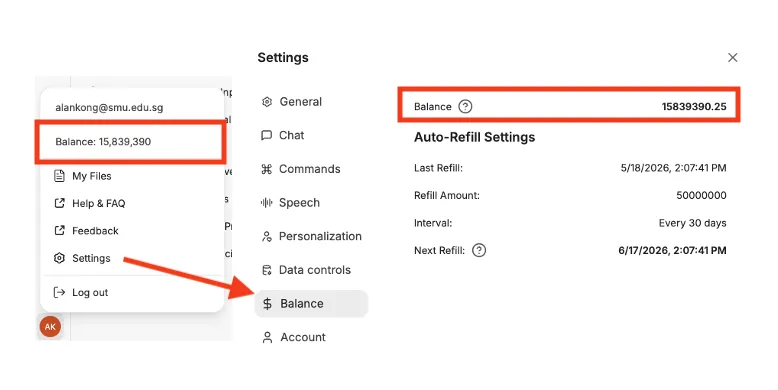
For this pilot phase, Studio Chat uses LibreChat credits as the per-user usage quota. Each eligible user receives 50 million credits per month, refilled monthly. The refill date, frequency and monthly quota may be adjusted based on findings from the pilot. This is a lazy refill, meaning the balance will only updates the next time you send a message after your refill date and does not refill if you still have remaining credits to use for the month. Tracking the credits this way allows us to be more prudent in the credits allocated to each users as we have a finite budget pool of credits to distributed.
Different models consume credits at different rates, depending on input length, output length, and the provider's per-token pricing. Heavier reasoning models such as Claude Opus 4.8, GPT-5.5, and DeepSeek-R1 generally cost more per response than smaller models like Claude Sonnet 4.6, GPT-5.2 or DeepSeek-V4-Flash. Gemini models are known for being cost and token efficient and user should fallback to Gemini model if they would like to stretch the credits for a longer period without compromising too much on the performance of the output response.
If you have used up your credits, you can request a top-up via this SMU Studio Chat Credit Request Form.
Any request to top-up over the monthly limit is subjected to IITS approval and will be reviewed on a case by case basis. You will need to provide consent for use to review your recent chat history to help us diagnose the root cause of your high credit usage and allow us to provide advice on using credits more optimally.
8. GET HELP
For any questions related to sign-in or access issues, errors, technical problems, feature suggestions & requests, feedback, please use this contact form.
For credit top-up request, please use this SMU Studio Chat Credit Request Form.
A FEW THINGS TO REMEMBER
- AI can be wrong. Models can produce confident-sounding answers that are factually incorrect (hallucinations). Always verify before acting on or sharing output.
- You are responsible for what you generate and how you use it, including the things you upload to Studio Chat.
- Cite AI-assisted content when sharing it externally or publishing it — this is good academic practice and aligns with SMU's broader expectations on integrity.
- This is a pilot. Features, models, quotas, and policies may change. We appreciate your patience and your feedback.
Page last updated: 30 June 2026. Maintained by the SMU AI Team. Feedback and corrections welcome via the contact form.
FREQUENTLY ASKED QUESTIONS
This page answers the most common questions about Studio Chat. For step-by-step usage instructions, see the Quick Start Guide. If your question isn't answered here, please contact the use through this contact form.
ABOUT STUDIO CHAT
ACCESS & ELIGIBILITY
MODELS & CAPABILITIES
IMAGE GENERATION
FILES, MEMORY & PERSONALISATION
DATA CLASSIFICATION, PRIVACY & SECURITY
USAGE, QUOTAS & FAIR USE
TROUBLESHOOTING
ROADMAP, FEEDBACK & SUPPORT
Page last updated: 30 June 2026. Maintained by the SMU AI Team. Feedback and corrections welcome via the contact form.
Terms and Conditions of Use
Page last updated: 3 June 2026. Maintained by the SMU AI Team. Feedback and corrections welcome via the contact form.